
1. Definition / Conclusion
Job Control is a control structure in the shell that allows you to suspend, resume, and switch processes that have already been executed. Many people remember & as simply a “run in background” symbol, but understanding Job Control only at that level is insufficient. & is merely the starting point, and behind it exists a continuous flow involving jobs, fg, bg, kill, and various signals. Without understanding this structure, the shell looks like a tool that executes commands one line at a time. With proper understanding, however, the shell becomes an interface for managing the state of running tasks.
The key point is that Job Control is not about “how to execute a process,” but about how to handle its state after execution. Running a command itself is possible without Job Control. However, situations such as pausing a running task, regaining control of the terminal, resuming a stopped job in the background, or bringing a background job back to the foreground cannot be handled by a simple execution model alone. Job Control exists to solve exactly this problem. In other words, it transforms the shell from a simple executor into a system that manages the state of running processes.
More precisely, the shell does not treat executed processes as mere PIDs. Instead, it treats them as jobs, which are units of management. This is why users can refer to tasks using job numbers like %1, %2, and the shell can display whether a job is running, stopped, or in the foreground. Understanding this distinction makes it clear why commands such as fg %1, bg %1, and jobs exist. A process is an execution unit managed by the operating system, while a job is a unit managed by the shell from the user’s perspective. Job Control operates on top of this shell-level abstraction.
Another important point is that Job Control is not an isolated feature. It is built on top of terminal and signal delivery mechanisms. When a user presses CTRL+C or CTRL+Z, it is incorrect to think that “the shell just stops the process.” In reality, the terminal acts as the origin of signal generation, the shell knows which job is currently in the foreground, and the signal is delivered to that foreground job. The result may be termination, suspension, or later resumption (SIGCONT). Ultimately, Job Control is not about execution itself, but about state transitions and controllability.
# simple execution
sleep 100

# background execution
sleep 100 &

# check current job states
jobs

# bring a stopped job to foreground
fg %1

# resume a stopped job in background
bg %1
At a glance, these may look like a set of unrelated commands. In reality, they all answer the same question: “How should we control a task that is already running?” Job Control is the shell’s systematic answer to that question.
2. Key Summary
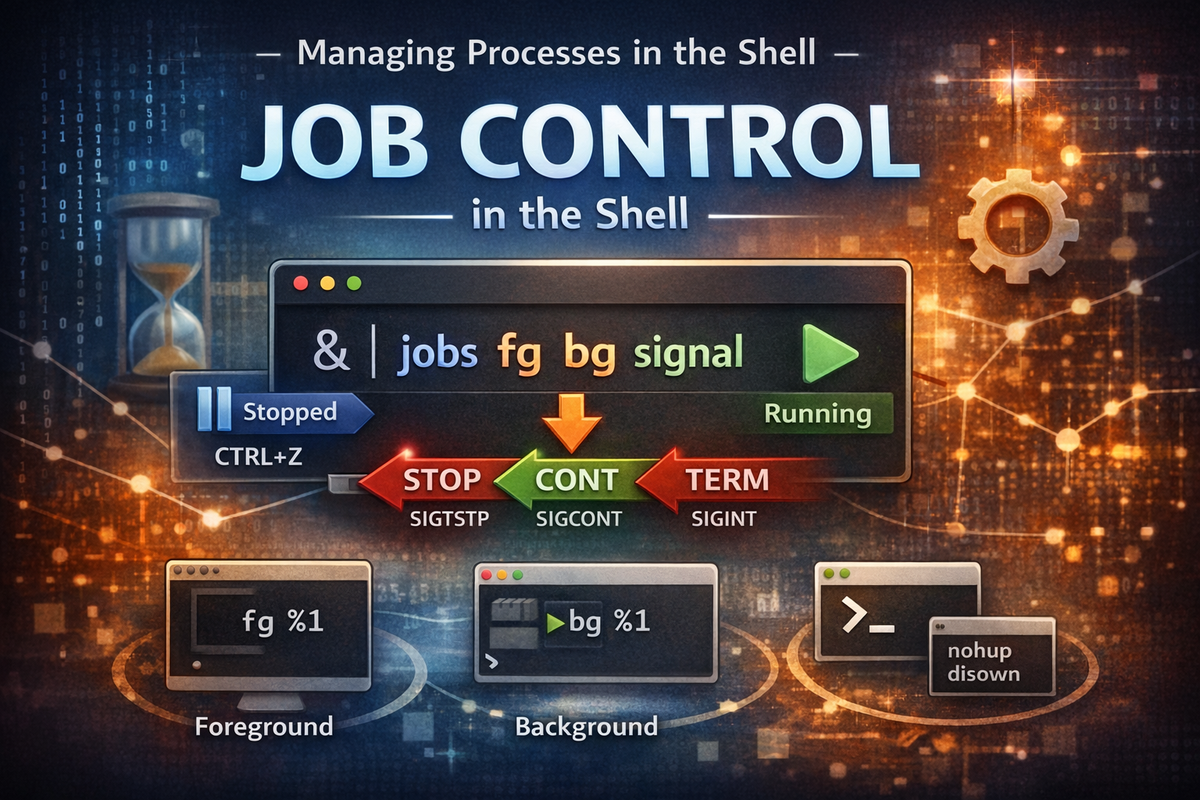
The first axis to understand in Job Control is the three states: foreground / background / stopped. A foreground job is directly connected to the terminal and receives input and signals. A background job continues to run but does not directly receive terminal input. A stopped job is not terminated but temporarily paused. Many introductory explanations emphasize only foreground and background, but the stopped state is critically important, because most control flows involving fg and bg revolve around it.
The & operator determines the initial execution mode by starting a job in the background instead of the foreground. However, Job Control does not end there. A running foreground job can be moved into the stopped state using CTRL+Z, then resumed in the background with bg, or brought back to the foreground with fg. In other words, & defines the starting position, while actual state transitions are handled by jobs, fg, bg, and signals. Memorizing only & is insufficient to handle real-world control scenarios.
At its core, the behavior is signal-driven. Pressing CTRL+Z typically sends a SIGTSTP signal, suspending the current foreground job. Commands like bg and fg internally send SIGCONT to resume execution. Termination involves signals such as SIGINT, SIGTERM, or sometimes SIGKILL. This means Job Control is not some special magic performed by the shell, but rather a user-friendly interface for managing signals. While users interact with jobs using %1 notation, the underlying system operates with process groups and signals.
It is also crucial to understand that Job Control is about management, not execution. The ability to run sleep 100 exists regardless of Job Control. However, pausing it, moving it to the background, bringing it back to the foreground, or checking its state requires a higher-level control mechanism. This distinction elevates the shell from a simple command executor to a control layer that allows users to orchestrate multiple tasks interactively.
The following sequence illustrates the minimal control flow:
# 1) run in foreground
sleep 100

# 2) press CTRL+Z
# -> transition to Stopped state

# 3) check status
jobs

# 4) resume in background
bg %1

# 5) bring back to foreground
fg %1
Although simple, this sequence captures the essence of Job Control. A running job is suspended via a signal, tracked by the shell as a job, and then transitioned into a new state based on user commands. The essence of Job Control is therefore state transition management within the shell.
3. Why It Matters
When a command is executed in the shell, it runs in the foreground by default. This does not merely mean that its output appears on the screen. It means that the process occupies the terminal, and the user cannot freely enter new commands in that shell until the process finishes. For short-lived commands like ls, pwd, or cat, this is not a problem. However, real-world tasks often take much longer. Builds, compression, log streaming, network waits, data processing, testing, and deployment scripts can run for seconds, minutes, or even hours.
The problem is that real workflows are rarely linear. While a long-running task is executing, the user may want to run other commands, inspect files, or monitor system state. Sometimes a process needs to be paused temporarily and resumed later. In other cases, a job that was mistakenly started in the foreground should have been a background task. A simple execution model cannot handle these needs. Once a process starts, the only options are to wait for completion or forcibly terminate it.
This limitation is more significant than it first appears. Consider monitoring logs using tail -f. While the command runs in the foreground, you can observe logs, but you cannot easily execute other commands in the same shell. Opening a new terminal is possible, but that does not address the core issue: you need to control the running task without terminating it. Without Job Control, the only option is to stop and restart the process, which disrupts continuity and may lose context.
Job Control solves this by allowing processes to be treated not as one-time execution units, but as manageable entities whose states can be changed dynamically. Instead of terminating a process to regain control, the user can suspend it, move it to the background, or resume it later. This fundamentally changes how tasks are handled in an interactive shell environment.
In essence, Job Control is not about enabling multitasking at the operating system level—the OS already supports that. It is about enabling the user to interactively manage multitasking within a single terminal session. The shell becomes more than an interface for launching commands; it becomes a tool for controlling ongoing work.
# run a long task in foreground
find / -name "*.log"

# terminal becomes occupied
# use CTRL+Z -> jobs -> bg to regain control without killing the process
This example illustrates the core issue. The problem is not execution itself, but how the user can continue interacting with a running process after it has started. Job Control exists precisely to address that problem.
4. Examples
Example 1. Background Execution (&)
The first Job Control syntax most people encounter is &. Many explanations stop here, but in reality, this is where understanding should begin. When you append & to a command as shown below, the shell starts that command as a background job.
sleep 100 &
When this command is executed, the shell typically prints the job number and PID, and immediately returns the prompt.
[1] 12345
$
This output does not simply mean “it runs in the background.” It means that the shell has registered this process into its job management system. [1] is the job number, and 12345 may be the actual PID. From this point on, the user can refer to this task using %1. In other words, & is not just a declaration of non-blocking execution, but the starting action that places the process into the shell’s Job Control system.
From a structural perspective, this happens because the shell does not wait for this process as a foreground task. In foreground execution, the shell hands over control to the process and waits until it finishes. In contrast, background execution allows the shell to immediately accept the next input. This enables users to run long tasks while continuing to interact with the same terminal.
The use case is straightforward. It is used when a long-running task does not need to occupy the terminal. Examples include waiting scripts, simple data processing, log collection tasks, network wait operations, or repetitive shell scripts. However, a common misunderstanding here is thinking that “adding & is enough.” In practice, users often need to check the state of background tasks, bring them back to the foreground, or consider their relationship with terminal sessions. Therefore, & is not the whole feature, but only the entry point.
Example 2. Suspending a Running Task (CTRL+Z)
Now consider the opposite scenario: running a task in the foreground and then suspending it.
sleep 100
While this is running, pressing CTRL+Z produces output similar to the following:
^Z
[1]+  Stopped                 sleep 100
The critical point here is that the process is not terminated, but suspended. Beginners often confuse CTRL+C and CTRL+Z, but their meanings are completely different. CTRL+C typically sends a SIGINT signal, leading to termination, while CTRL+Z sends SIGTSTP, placing the process into a suspended state. The process still exists but is no longer actively running—it is waiting to be resumed.
This behavior is important because it allows a running task to be preserved instead of killed. For example, if a long-running command was started and you suddenly need to perform another task, you do not need to terminate and restart it later. With Job Control, you can suspend it using CTRL+Z, then resume it later using bg or fg.
In this sense, CTRL+Z is closer to “pause” than “cancel.” Failing to understand this distinction leads to missing the core of Job Control. The power of the shell lies in its ability to manage intermediate states, not just binary outcomes like success or failure.
Example 3. Checking Suspended Tasks (jobs)
To inspect the current jobs managed by the shell, use the jobs command.
jobs
The output may look like this:
[1]+  Stopped                 sleep 100
[2]-  Running                 tail -f /var/log/syslog &
This output is more than just a list. It shows that the shell is tracking tasks as jobs along with their states. States such as Running and Stopped are displayed because of this tracking. Symbols like + and - indicate the default job selection priority. Based on this information, users can decide which job to control with fg, bg, or kill.
From a structural perspective, the shell does not simply execute commands and forget them. When Job Control is active, the shell monitors the lifecycle of each job—whether it is running, stopped, or finished. This tracking enables commands like fg %1 or bg %2. Therefore, jobs is not just a query tool, but a direct window into the existence of the Job Control system.
In practice, jobs is frequently used when multiple background and suspended tasks coexist. Managing them from memory alone quickly becomes confusing. With jobs, users can immediately see which tasks are active and which are paused within the current shell session.
Example 4. Bringing a Job to Foreground (fg)
To bring a stopped or background job back to the foreground, use fg.
fg %1
Executing this command moves the specified job to the foreground and reconnects it to the terminal input. For commands like sleep 100, the effect may not be obvious, but for interactive or streaming commands such as vi, less, top, or tail -f, the effect is clear.
The essence of fg is not just resumption. It may send a SIGCONT signal if needed, but more importantly, it transfers terminal control back to that job. In other words, fg performs both “resume execution” and “bring to the front.” This distinguishes it from simply sending a continuation signal. Compared to bg, which resumes execution without giving terminal control, the difference is explicit.
The typical use case is when you want to directly observe output or interact with a task that was previously in the background. It allows users to continue working within the same execution context without restarting the process.
Example 5. Resuming in Background (bg)
To resume a stopped job in the background without bringing it to the foreground, use bg.
bg %1
This command changes a stopped job into a running background job. The output typically looks like this:
[1]+ sleep 100 &
Structurally, bg sends a SIGCONT signal to the stopped job, allowing it to resume execution. Unlike fg, it does not transfer terminal control. As a result, the user regains the prompt while the job continues running in the background. This is especially useful when a task was mistakenly started in the foreground but should have been a background task.
However, a common misconception is that bg can move any running process into the background. In reality, bg is typically meaningful only for jobs in the stopped state. Therefore, it is usually preceded by CTRL+Z.
# mistakenly started in foreground
tail -f app.log

# suspend it
# CTRL+Z
jobs

# resume in background
bg %1
This allows the log stream to continue while freeing the terminal. When needed, the job can be brought back with fg %1. Understanding this flow alone significantly improves practical usage of Job Control.
5. Practical Usage
1) Handling Interruptions During Long Tasks
In real environments, tasks such as builds, tests, data processing, large file operations, and network waits often take significant time. A common situation is starting a task expecting it to finish quickly, only to realize it takes much longer. When running in the foreground, the terminal becomes occupied, preventing immediate execution of other commands.
The typical solution is to suspend the task and move it to the background.
./long_build.sh
# realize it takes too long
# CTRL+Z
bg %1
The advantage is that the task does not need to be restarted. If the initial phase was time-consuming, restarting would be inefficient. Job Control allows the same execution flow to continue while regaining control of the shell. This enables interruption handling without sacrificing progress.
2) Switching Tasks While Monitoring Logs
In operational environments, commands like tail -f or journalctl -f are commonly used to monitor logs. However, while watching logs, there are often needs to inspect files, check process states, or verify network connections.
Job Control allows seamless switching between these activities.
tail -f /var/log/app.log
# need to run another command
# CTRL+Z
bg %1

# perform checks
ps -ef | grep app
netstat -tnlp | grep 8080

# return to logs
fg %1
The key advantage is that the log stream remains uninterrupted. Restarting log monitoring could cause loss of context or missed output. Job Control enables flexible transitions within a single terminal session.
3) Recovering from Foreground Execution Mistakes
This situation occurs frequently in practice. A task that should have been run with & is accidentally executed in the foreground. Many users respond by pressing CTRL+C and restarting the command with &. However, this is inefficient and unnecessary.
A better approach is:
python batch_job.py
# realize the mistake
# CTRL+Z
bg %1
This converts the running process into a background job without restarting it. The ability to recover from execution mistakes without losing progress is one of the most practical benefits of Job Control.
4) Managing Multiple Tasks
Handling multiple tasks within a single shell session is another common scenario. For example, one job may be monitoring logs, another running tests, and another processing data.
sleep 100 &
tail -f app.log &
jobs
Example output:
[1]-  Running                 sleep 100 &
[2]+  Running                 tail -f app.log &
From here, specific jobs can be brought to the foreground using commands like fg %2. This effectively turns a single shell into a multi-task control interface. While more complex scenarios may benefit from tools like tmux or screen, Job Control provides the most immediate and lightweight control mechanism.
6. Common Mistakes
Mistake 1. Thinking & Is Enough
Many introductory guides stop at command &, leading users to believe that background execution alone is sufficient. However, real problems arise not at execution time, but after execution, when state management becomes necessary.
The solution is to treat &, jobs, fg, bg, and CTRL+Z as a unified set. & defines how a job starts, while the others define how its state is controlled.
Mistake 2. Confusing CTRL+C and CTRL+Z
This mistake is both common and impactful. Pressing CTRL+C terminates a process, while CTRL+Z suspends it. For long-running tasks, using the wrong key can result in significant loss of progress.
# terminate
CTRL+C   # SIGINT

# suspend
CTRL+Z   # SIGTSTP
Understanding this distinction is essential for safe and effective Job Control usage.
Mistake 3. Assuming bg Moves Running Processes
bg does not directly move a running foreground process into the background. It resumes a stopped job in the background. Therefore, the typical pattern involves CTRL+Z first.
long_running_command
# CTRL+Z
bg %1
Without this understanding, bg may appear ineffective.
Mistake 4. Treating Jobs and Processes as the Same
A process is an OS-level execution unit, while a job is a shell-level abstraction. Commands like fg %1 use job IDs, not PIDs. Confusion arises when users fail to distinguish between these layers.
jobs
ps -ef | grep sleep
These commands show the same execution targets from different perspectives.
Mistake 5. Assuming Background Jobs Survive Terminal Closure
Running a job with & does not detach it from the terminal session. When the session ends, the process may receive SIGHUP and terminate.
# background execution
python app.py &

# detach from session
nohup python app.py > app.log 2>&1 &
Understanding the difference between background execution and session detachment is critical.
7. Related Concepts
To properly understand Job Control, related concepts must be considered together. The first is signal. Signals such as SIGINT, SIGTSTP, SIGCONT, SIGTERM, and SIGHUP form the core language of Job Control. While users interact with convenient interfaces like CTRL+C, CTRL+Z, fg, and bg, underneath, it is ultimately signals that are delivered and cause state changes. The shell’s role is to coordinate these signals at the job level.
The second is the distinction between process and job. A process is an execution unit managed by the operating system, while a job is a logical unit managed by the shell for user convenience. A single job may correspond to a single process, but in cases like pipelines, a job can consist of multiple processes. In such cases, the job becomes a more user-friendly control unit than individual PIDs. This is why syntax like %1 exists.
The third is the difference between foreground and background. Understanding them as simply “visible” versus “hidden” is superficial. More accurately, a foreground job is directly connected to the terminal and receives input and signals, while a background job does not. Because of this distinction, only foreground jobs are the direct targets of CTRL+C and CTRL+Z, while background jobs do not receive terminal input in the same way.
The fourth is the concept of session detachment, such as nohup or disown. Job Control is powerful for managing state within the current shell session, but whether a task continues after the session ends is a separate concern. In operational environments, it is common to require that a job continues running even after an SSH session is disconnected. In such cases, Job Control alone is not sufficient, and session detachment tools must be used together.
In other words, Job Control is not an isolated concept but sits between signal handling, terminal control, process groups, and session management. Understanding these together provides a more complete and accurate view of how it actually works.
8. Deep Dive
Job Control may appear to be a convenience feature provided by the shell, but in reality, it is a mechanism built on top of terminal behavior, process groups, and signal delivery structures. Understanding this explains why only foreground jobs receive keyboard signals, why fg and bg work, and why CTRL+Z suspends rather than terminates.
When the shell executes a command, it groups the associated process or processes into a specific process group. The shell also keeps track of which process group is currently in the foreground for the terminal. When a user presses CTRL+C or CTRL+Z, the input is not delivered as ordinary characters. Instead, the terminal driver interprets it as a signal event and sends that signal to the current foreground process group. Therefore, the target of the signal is not an arbitrary process, but the group of processes currently in control of the terminal.
This structure makes the distinction between foreground and background more than just a visual difference—it becomes a difference in control authority. Only the foreground job is the direct recipient of terminal input and signals. That is why a foreground job can be suspended with CTRL+Z, while background jobs are not affected in the same way. The fg command restores this control authority to the foreground, while bg resumes execution without granting terminal control.
Another critical concept is that suspension and termination are fundamentally different. A suspended process still exists in memory and retains its execution context. It simply stops consuming CPU and waits to be resumed. Therefore, sending SIGCONT allows it to continue from where it left off. In contrast, a terminated process has completed its lifecycle and cannot be resumed. This distinction is what makes flows like CTRL+Z -> bg possible. Job Control does not kill and restart processes—it changes the execution state of living processes.
The structure becomes even more interesting when pipelines are considered. For example:
yes | head
Although this appears as a single command, it may internally consist of multiple processes. The shell treats this collection as a single job. This is why the job abstraction exists—users want to manage a logical unit of work rather than track multiple PIDs individually. Job Control operates on this grouped abstraction.
The role of SIGHUP also becomes clear in this context. Even if a job is running in the background, it may still be tied to the current terminal session. When the session ends, the job can receive SIGHUP and terminate. This demonstrates that Job Control manages execution within a session, but does not inherently provide session independence. That is why tools like nohup, disown, screen, and tmux are necessary for fully detached execution.
Ultimately, Job Control explains why it is possible to change the state of a running process after it has started. It is not just a set of convenience commands, but the result of combining terminal input handling, signal delivery, foreground process groups, and shell-level job tracking. Once this structure is understood, the shell is no longer seen as a simple command executor, but as an environment where running tasks can be paused, moved, and controlled dynamically.
9. Summary
Job Control is a core feature of the shell for managing processes. The & operator may appear to be just a background execution symbol, but in reality, it is only the entry point into the Job Control system. Behind it lies a connected structure involving jobs, fg, bg, CTRL+Z, and signals such as SIGTSTP, SIGCONT, SIGINT, and SIGHUP. To truly understand Job Control, all of these must be viewed as a single flow.
The key is not execution itself, but state transition and controllability. A running foreground job can be suspended, a stopped job can be resumed in the background, and a background job can be brought back to the foreground. The shell tracks these tasks as jobs, allowing users to manage them using identifiers like %1. At this point, the shell is no longer just a command executor—it becomes a control interface for managing active work.
In practice, this makes a significant difference. Tasks can be moved to the background without restarting them, log streams can be maintained while performing other operations, and multiple jobs can be managed and switched seamlessly. Without Job Control, the shell feels restrictive. With it, the shell becomes a highly flexible tool for managing ongoing processes.
In summary, Job Control goes beyond simply executing commands. It explains how running processes can continue to be managed after execution begins. Once understood, the shell is no longer just a place to run commands, but a system for controlling and orchestrating active tasks.