
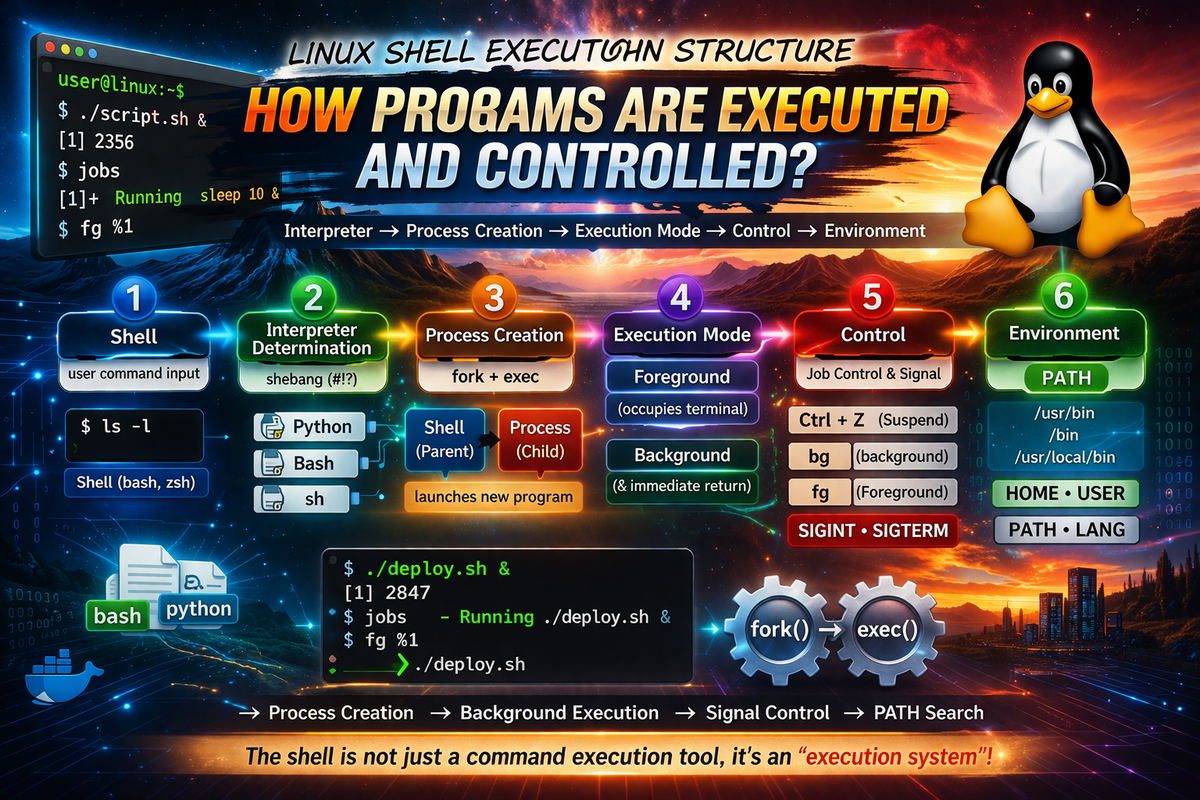
1. Definition / Conclusion
The Linux shell is often explained as a “program that executes commands,” but if you understand it only at that level, you are not even seeing half of how it actually works. The shell is not a simple input interface. It is an execution system that interprets user input, determines what to execute, creates processes when necessary, decides whether execution should run in the foreground or background, controls running processes, and applies execution context such as PATH and environment variables. In other words, the shell is not just a command executor, but something much closer to an execution orchestrator that constructs and governs the entire lifecycle of program execution.
The purpose of this article is not to dive deeply into a single concept. It is not a document that explains shebang, fork, exec, &, job control, signal, PATH, and environment variables individually. It does the opposite. This article is a hub that shows how those concepts are actually placed within a single execution flow. Instead of focusing on “what each concept is,” it first answers “where each concept exists within the overall structure.” Only then do the individual articles make sense without losing context.
There is only one core idea. The key concepts of the Linux shell do not exist independently. Interpreter selection is connected to process execution, execution mode is connected to job control, signals are tied to execution control, and PATH and environment variables directly affect execution outcomes. If you do not see this structure, you may memorize syntax but still fail to explain why behavior changes in real scenarios. Once you understand the structure, seemingly unrelated problems start to reveal themselves as parts of the same execution model.
This hub article exists to provide that map. It does not list concepts; it organizes them around a single axis: how the shell executes and controls programs. This is both the starting point and the branching point. You establish the structure here, then descend into detailed articles at each step as needed. In one line:
The shell is not a collection of commands, but a system that organizes execution.
2. Key Summary
To properly understand the Linux shell, you must not treat it as a simple “program that takes input and runs commands.” The shell interprets user input, determines whether the input is a built-in command or an external program, resolves execution targets, creates processes, decides execution mode (foreground or background), and controls running processes. This is not just an input-output problem; it is directly tied to the operating system’s execution model.
The execution flow can be outlined as follows. The shell first parses the user’s input. It then determines whether the input is a built-in command, an external command, an executable file, or a script. If it is an executable, the shell searches for it using PATH. If it is a script, it determines which interpreter to use via shebang. After that, it creates a new process and replaces it with the actual program to execute. Then it decides whether the execution should run in the foreground or background. Finally, job control, signals, and environment variables influence the execution state and outcome.
In other words, shell-related concepts should not be learned as a “collection of syntax,” but as a structured sequence of stages. Shebang belongs to the interpreter decision stage. fork/exec belongs to the process creation stage. & belongs to the execution mode stage. fg, bg, jobs, Ctrl + Z, SIGINT, and SIGTERM belong to the execution control stage. PATH and environment variables form the foundational environment that affects all execution. The same command can produce completely different results depending on that environment.
That is why this article does not fragment explanations. Instead, it presents the structure first and connects each concept to its position within that structure. If you follow this approach, you move from memorizing syntax to understanding the system itself. You gain the ability to explain not just “what happened,” but why it happened within the execution model.
3. Why It Matters
When people first learn Linux or Unix-like systems, explanations are often excessively fragmented. One article explains shebang, another explains &, and another explains the difference between bash and sh. Each explanation may be correct in isolation, but learning them this way breaks the overall flow. Individual concepts remain in memory, but the actual execution path of a command does not. As a result, when problems arise in practice, it becomes difficult to trace them structurally.
Consider a situation where ./script.sh does not execute. The cause could be file permission issues, a broken shebang, an incorrect interpreter path, or even differences between the current shell and the expected shell environment. If you only understand shebang as “a special syntax at the top of a script,” you cannot connect these causes. You end up reacting to symptoms instead of understanding the structure behind them.
The same applies to background execution. Many people remember & as simply “a symbol that runs a command in the background.” But that is only the beginning. You must also understand how to bring the job back to the foreground, how to resume stopped jobs, and how signals control execution state. Without this, you know the syntax but cannot actually operate within the system. You have learned commands, but not execution.
In real-world environments, this structural reality becomes even more explicit. Problems such as a terminal being blocked by a long-running process, scripts failing with “bad interpreter,” commands working on one server but failing on another, or processes reacting unexpectedly to termination signals all originate from the same execution model. They may look different on the surface, but they all relate to execution target resolution, interpreter selection, process creation, execution mode, execution control, and environment interpretation.
That is why a hub is necessary. Before diving into individual topics, you need a complete map of the execution structure. You must be able to locate any problem within that structure. Only then can you understand each concept in context. When you read about shebang, you recognize it as part of interpreter selection. When you read about job control, you recognize it as part of execution control.
This article serves exactly that purpose. It is not meant to replace detailed explanations. Instead, it provides the structure and connects each point to deeper articles. It is not a simple explanation, but a map for understanding how shell execution works as a system.
4. Full Execution Flow
The overall execution structure of the shell can be viewed as the following six stages.
- Understanding the role of the shell
- Determining the execution target
- Creating the process
- Determining the execution mode
- Controlling execution
- Interpreting the execution environment
These six stages may overlap in practice, but as a learning structure they are extremely useful. Most importantly, this sequence closely follows the actual execution flow. The user enters a command in the terminal, the shell receives and interprets it, determines what should be executed, creates a new process, decides whether the execution should run in the foreground or background, controls the running job if needed, and continuously applies environment information such as PATH and environment variables throughout the process.
Seen as a flow, it becomes clearer:
User input
  ↓
Shell parses the command
  ↓
Execution target is determined
  ↓
Interpreter requirement is checked
  ↓
Process is created and program is executed
  ↓
Foreground / background is decided
  ↓
Execution is controlled via job control / signal
  ↓
Environment such as PATH / env is applied
If this structure is reduced to “command execution,” a significant portion disappears. This simplification becomes a major obstacle, especially in early learning. In reality, multiple layers of decision-making exist behind a single command. The shell does not simply take input and hand it to the CPU. It interprets execution conditions, organizes execution units, and manages post-execution state. The shell is not just a launcher; it is a system that constructs and controls execution.
From this point on, we will examine each stage of this flow in more detail and place the corresponding sub-articles at each position. This is the core of this hub article. The goal is not to memorize concepts in isolation, but to assign them positions within a complete map.
5. Detailed Structure + Sub-Article Connections
1) What does the shell actually do
The shell is an interface that receives user commands and delivers them to the operating system. However, even calling it an interface is too weak a description. A simple interface would merely pass input through as-is. The shell does far more. It parses user input, expands variables, resolves wildcards, interprets pipes and redirections, executes built-in commands directly, and organizes the execution of external programs. In other words, the shell is not just an input/output layer, but a command interpreter and execution manager.
This is also why many people confuse the terminal and the shell. The terminal is fundamentally an input/output window. It passes user keystrokes to the shell and displays whatever the shell outputs. The shell, on the other hand, is the component that interprets meaning. Within the same terminal, you can run bash, zsh, or sh. This alone shows they are not the same. The terminal is the environment, and the shell is the execution entity within that environment.
Consider the following command:
echo hello
It appears to be a simple command that prints “hello.” However, from the shell’s perspective, it must first determine whether echo is a built-in command or an external executable. In bash, echo is typically a built-in, so it is handled directly without locating an external program. On the other hand, ls is usually an external executable, so the shell must search for it using PATH. The user sees both as “commands,” but internally they are handled differently.
type echo
type ls
Running this shows that echo is often a shell builtin, while ls resolves to a file path. This distinction directly answers the question of what the shell actually does. It is not a passive relay—it actively decides how execution is handled.
👉 The Complete Guide to Shell vs Terminal — What They Are and How They Differ
2) How programs are executed — interpreter selection
Not everything the user executes is a binary. Some are ELF executables, others are shell scripts, and others may be Python scripts. In these cases, the shell must determine which program should be used to execute the file. This is where interpreter selection comes in, and the most representative mechanism is shebang.
Consider the following script:
#!/bin/bash
echo "hello from bash"
If this file has execute permission and is run with ./script.sh, the operating system reads the first line and uses /bin/bash as the interpreter. The key point is not that “the shell reads and executes the file line by line,” but that execution is delegated to an appropriate interpreter. If the shebang is incorrect, the script may fail to execute even if it exists.
chmod +x script.sh
./script.sh
Alternatively, the script can be run like this:
bash script.sh
In this case, the shebang is ignored, and the user explicitly invokes the interpreter. Although these two methods appear similar, their execution paths are not identical. The first depends on the file’s shebang and permissions, while the second depends on the interpreter explicitly chosen by the user.
The difference between bash and sh also becomes clear here. Some scripts use bash-specific syntax. If the shebang is #!/bin/sh or the script is executed with sh script.sh, the result may differ. Features such as arrays, [[ ... ]], source, and process substitution behave differently between bash and sh. Therefore, the question “why does this script work here but not there?” is not a syntax issue—it is an interpreter selection issue.
#!/bin/sh
arr=(a b c)   # may fail in sh
echo "${arr[0]}"
Understanding this requires more than memorizing differences. You must recognize that this belongs to the execution target resolution and interpreter selection stage within the overall structure.
👉 Complete Guide to shebang (#!) — From Script Execution Principles to bash/python Examples
👉 Complete Guide to bash vs sh — Syntax, Execution Model, Compatibility, and shebang Explained with Examples
3) The real execution mechanism — fork / exec
When the shell executes a program, it does not replace itself with that program. If it did, the shell would disappear after each command. Instead, the shell typically duplicates itself and executes the program in the duplicated process. This behavior is explained by fork and exec.
In simplified form, the flow is:
Shell process
  ├─ fork() → create child process
  └─ child process exec() → replace with actual program (e.g., ls)
In other words, the shell does not directly execute programs. It creates a child process and then replaces that child with the target program. This allows the parent shell to remain alive and continue accepting input after execution completes. Without this structure, concepts like multiple concurrent processes or background execution would not make sense.
For example, when running:
ls
The user simply sees file output. Internally, however, something like the following occurs:
- The shell parses the command
ls. - It locates the executable using PATH.
- It calls
fork()to create a child process. - The child process calls
exec()to become/bin/ls. - The parent shell waits for or manages the child process.
Here, exec does not create a new process—it replaces the current process image. fork creates a new process. These must be understood separately. Only then can you explain how the shell continues to exist while running other programs.
This structure also underlies pipelines, redirections, and background execution. For example, pipelines involve multiple processes connected via file descriptors. Without understanding fork/exec, you are only seeing surface syntax. Therefore, fork/exec is not just a system call topic—it is the central axis of the shell execution model.
👉 Understanding fork and exec in Linux — How the Shell Executes Programs
4) Execution mode — foreground vs background
Executing a program and deciding how it runs are different problems. By default, commands run in the foreground. This means the process occupies the terminal, and the shell typically does not accept new input until it finishes. The user must wait.
For example:
sleep 10
This command produces no visible output, but it blocks the terminal for 10 seconds. If & is appended, the behavior changes:
sleep 10 &
The shell runs the job in the background and immediately returns the prompt. The user can continue entering commands. The key point is that the job has not finished—it is simply running in a different execution mode. Many misunderstand this as a performance feature, but it is not about speed. It is about control of terminal ownership.
Foreground jobs are tightly bound to the terminal. Signals like Ctrl + C and Ctrl + Z are delivered to the foreground process. Background jobs are detached from this direct control. This distinction leads directly into job control.
In practice, background execution is essential when running long tasks while continuing other work. However, knowing & alone is insufficient. You must understand how to manage and control these jobs after they start.
👉 What Does & Mean in Shell — Complete Guide to Background Execution in Linux
5) Execution control — Job Control and Signal
Execution does not end once a process starts. In real scenarios, you need to pause, resume, or terminate processes. This is where job control comes in. The shell is not just responsible for execution, but also for managing the state of running jobs.
For example, pressing Ctrl + Z pauses a foreground job and returns control to the shell. This does not terminate the process; it places it in a stopped state. You can resume it in the background with bg or bring it back to the foreground with fg.
sleep 100
# Ctrl + Z
jobs
bg %1
fg %1
The jobs command lists active jobs managed by the shell. bg resumes a stopped job in the background, and fg brings it back to the foreground. This mechanism is job control. Underneath, it is powered by signals. For example, Ctrl + C typically sends SIGINT, and Ctrl + Z sends SIGTSTP. You can also send signals manually:
kill -TERM 12345
kill -KILL 12345
These are fundamentally different. SIGTERM requests graceful termination, while SIGKILL forces termination without the possibility of handling. Treating all termination as identical leads to incorrect assumptions about process behavior.
Job control is the shell-level interface for managing execution state, while signals are the operating system-level mechanism for delivering state changes. They are not separate topics—they are tightly integrated.
👉 Complete Guide to Linux Job Control — jobs, fg, bg, and Background Execution Structure
👉 Complete Guide to Linux Signals — SIGINT, SIGTERM, and Process Control Principles
6) Execution environment — PATH and environment variables
The shell does not execute commands solely based on their names. When the user types ls, the shell does not simply look in the current directory. Instead, it searches directories listed in the PATH environment variable.
echo "$PATH"
This variable contains a list of directories separated by :. The shell searches them in order. Therefore, command not found does not always mean the program does not exist—it means it could not be found within the current PATH.
Environment variables also directly influence program behavior:
echo "$HOME"
echo "$SHELL"
echo "$LANG"
These variables affect execution results across many tools and languages. Database connections, runtime modes, logging behavior, language settings, and configuration paths are often controlled via environment variables.
The key point is that PATH and environment variables are not optional add-ons. They form the foundation of the execution environment. They influence target resolution, interpreter execution, and runtime behavior. The same command can produce different results purely due to environmental differences.
👉 Understanding PATH and Environment Variables in Linux — How Executables Are Resolved
7. Practical Applications
1) Managing background jobs
In real-world environments, long-running tasks are often executed directly from the terminal. Batch scripts, log processing, large file handling, and simple data transformation tasks are common examples. If such tasks are executed in the foreground, the current terminal becomes occupied, making it inconvenient to perform other checks. The bigger issue is not just waiting, but the fact that you cannot run other commands within the same session.
In this situation, background execution using & combined with job control becomes highly practical. For example, you can run a long job in the background and use the same terminal to monitor its state with commands like tail, ps, top, or jobs. If needed, you can bring the job back to the foreground to observe its output directly or send signals to terminate it. The key is not just background execution itself, but keeping the job in a state that the shell can manage.
./batch_job.sh > batch.log 2>&1 &
jobs
tail -f batch.log
fg %1
Without this understanding, users tend to open new terminals for every long-running job, terminate processes blindly, or lose track of the execution state. With a proper understanding of the execution structure, the same tasks become significantly more controllable and predictable.
2) Debugging execution failures
One of the most common errors in operational environments is command not found. Many assume this means the program is not installed. While that can be true, it is often a PATH issue. In particular, environments such as development servers, batch systems, containers, cron jobs, or systemd services may have different PATH configurations from an interactive shell.
If you understand the shell execution structure, the debugging process becomes much clearer. First, verify whether the command is actually installed. Then check the PATH value, identify which shell is being used, and confirm whether environment variables are correctly applied. Instead of reacting to symptoms, you analyze the problem through execution target resolution and environment interpretation stages.
which python
echo "$PATH"
env | sort
This difference directly impacts efficiency. Without structural understanding, users may repeatedly reinstall software unnecessarily. With structural awareness, they can pinpoint exactly where the failure occurs. This leads to significantly faster problem resolution.
3) Script execution errors
There are cases where a script clearly exists and appears correct, yet fails to execute. The most common causes include permission issues, shebang errors, incorrect interpreter paths, and line-ending mismatches. However, identifying which cause applies requires understanding how the execution path is constructed, not just knowing syntax.
For example, if the file lacks execute permission, ./script.sh will fail. If the shebang points to a non-existent path, errors such as bad interpreter will occur. If the current shell differs from the one expected by the script, only certain syntax may break. Even Windows-style line endings (CRLF) can interfere with shebang interpretation. All of these appear as a single symptom—“the script does not run”—but they originate from different structural stages.
ls -l script.sh
head -n 1 script.sh
bash script.sh
sh script.sh
In practice, distinguishing these cases is critical. Without structural awareness, users treat all failures as the same. With it, they can identify exactly which stage of execution is broken. Script execution errors are not isolated issues—they are part of the shell execution model.
8. Common Mistakes
Mistake 1 — Understanding concepts in isolation
The most common mistake is learning each concept independently. Shebang is learned separately, & is learned separately, and signals are learned separately. While this may help memorization, it prevents integration. When a problem spans multiple concepts, it becomes difficult to solve.
For example, if background execution is used but execution control is not understood, the user cannot manage the job. If a script fails due to interpreter mismatch but bash vs sh differences are not understood, the root cause remains hidden. Learning concepts separately increases knowledge superficially but destroys structural understanding. That is why learning through the hub structure is necessary.
Mistake 2 — Using only & without control
Background execution is widely used, but many users only know & and not jobs, bg, fg, or kill. As a result, they can send tasks to the background but cannot track their state, resume stopped jobs, or bring them back to the foreground. In such cases, & becomes a tool that creates unmanaged processes rather than a productivity tool.
Within the shell execution model, starting a process is trivial. The real capability lies in controlling it. Therefore, learning & without job control and signal handling is incomplete. Execution mode and execution control must be understood together.
Mistake 3 — Ignoring PATH
When a command fails, users often assume installation is the issue. However, PATH is a core part of execution target resolution. In many environments—interactive shells, non-interactive shells, cron jobs, system services, and containers—PATH may differ significantly. Ignoring PATH leads to repeated misdiagnosis.
The important question is not whether a command exists, but whether it is discoverable in the current execution environment. Even on the same machine, different shells or execution contexts can produce different PATH values. Ignoring PATH means ignoring the foundation of execution.
Mistake 4 — Assuming fork/exec is unnecessary
Many people treat fork/exec as low-level system programming details and skip them. However, they are essential for understanding how the shell works. Without them, it is impossible to explain how the shell continues running while executing programs, how pipelines create multiple processes, or why parent-child relationships matter.
Without fork/exec, the shell appears as a simple command dispatcher. With it, the shell becomes a system that constructs and manages execution units. This concept is not optional—it is a central axis of the execution model.
9. Related Concepts
Although not deeply covered in this hub, several related concepts must be considered together. These include fork / exec, job control, signal, and file descriptor. Among these, file descriptors become especially important when understanding redirection, pipes, and stdin/stdout/stderr. The shell not only executes programs but also configures how their input and output are connected.
For example, syntax such as >, 2>&1, and | all rely on file descriptors and inter-process connections. This means that after understanding the execution structure, the next step is the I/O structure. Shell understanding is completed when execution and data flow are understood together.
Therefore, after reading this hub, the next step is to follow the connected sub-articles and explore each stage in depth. Starting with structure and then moving into details is far more stable than the reverse.
10. Going Deeper
The shell is often summarized as something that “executes programs,” but this description is overly simplistic. More accurately, the shell constructs and controls the execution structure. It determines the execution target, selects an interpreter when necessary, creates processes, places execution units in the foreground or background, changes their state through signals and job control, and provides execution conditions through PATH and environment variables. Behind a single command lies a far more layered system than it appears.
Once you adopt this perspective, Linux commands no longer look like a “list of functions.” The ls command is not just a tool for listing files—it is also an example of PATH resolution and external program execution. ./script.sh is not just script execution—it is an example of interpreter selection. sleep 10 & is not just background execution—it is an example of execution mode separation. Ctrl + Z, bg, fg, and kill are not just control commands—they are examples of execution state transitions. In other words, commands are functions, but behind them lies structure.
This structural perspective is useful not only for learning but also for designing documentation. When writing individual articles, organizing them based on which stage of the execution structure they belong to results in much clearer content. The shebang article belongs to the interpreter selection stage. The fork/exec article belongs to the process creation stage. The & article belongs to the execution mode stage. Job control and signal articles belong to the execution control stage. The PATH article belongs to the execution environment stage. This alignment makes the hub-and-sub-article structure coherent.
Ultimately, understanding the shell is not about knowing many commands. It is about understanding how user input is transformed into an execution unit, under what conditions it runs, in what state it exists, and how it is controlled. At that point, Linux stops being a system of memorized commands and becomes a system that can be structurally interpreted and reasoned about.
11. Summary
This article is not a collection of isolated explanations, but a hub of the Linux shell execution structure. What matters here is not the concepts themselves, but where each concept is positioned within the overall flow. The shell receives input, determines execution targets, selects interpreters, creates processes, decides execution modes, controls execution states, and applies environment context. Within this flow, shebang, bash/sh, fork/exec, &, job control, signal, PATH, and environment variables each occupy a specific position.
After reading this, the goal is not to memorize each concept separately, but to remember their positions.
The interpreter belongs to the execution target resolution stage.
fork/exec belongs to the actual execution stage.& belongs to the execution mode stage.
job control and signal belong to the execution control stage.
PATH and environment variables belong to the execution environment stage.
If you keep this structure in mind, you will not lose context when reading individual articles. More importantly, when problems arise in real environments, you will be able to ask not “what syntax is this?” but “which stage of the execution structure does this problem belong to?”. That distinction is what separates beginners from experienced practitioners.
Finally, one core sentence remains:
The shell is not a collection of commands, but an execution system.