
1. Definition / Conclusion
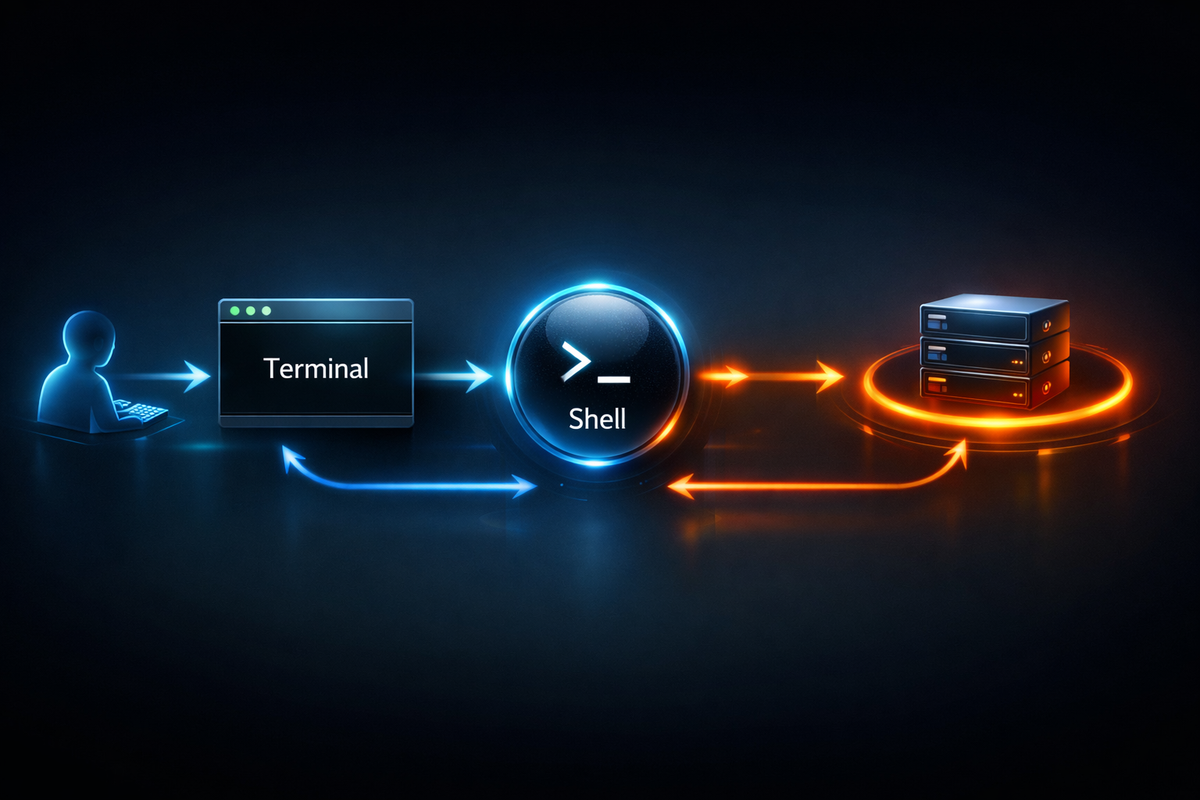
A terminal is an interface that displays input and output, while a shell is a program that interprets and executes commands. They are used together but are not the same, and understanding this difference is necessary to correctly understand command execution structure, SSH sessions, environment variables, and initialization files.
2. Key Summary
A terminal is a window. A shell is the command interpreter running inside that window. Even within the same terminal, different shells such as bash, zsh, and sh can be executed, and the source of problems is divided between terminal-related issues and shell-related issues.
3. Why It Matters
When first encountering Linux, users usually understand it at the level of “type a command in a black window and it executes.” This level of understanding is enough for simple command execution, but it does not explain why commands behave the way they do or where problems originate. For example, when the prompt changes, aliases do not apply, or .bashrc modifications are not reflected, it becomes difficult to pinpoint the cause. The problem lies in overlooking that the interface where commands are typed and the program that interprets them are separate components.
The limitation of the common understanding is that it treats “what is visible” and “what actually executes” as a single entity. It is easy to assume that since the terminal program is open, it is responsible for executing commands. However, the terminal is an input/output channel. It receives user keystrokes, forwards them to an internal process, and displays that process’s output. The actual interpretation and execution are handled by the shell.
The solution is to understand the separation of roles. The structure can be expressed as User → Terminal → Shell → Operating System → Shell → Terminal → User. Once this structure is clear, it becomes evident that rendering issues belong to the terminal layer, while command interpretation issues belong to the shell layer. The fact that a local terminal and a remote shell are separated during SSH sessions is also explained by this same structure. This distinction is not just terminology but a boundary that defines how the system operates.
4. Examples
Example 1. What happens when ls is entered
ls
The result is that the list of files in the current directory is displayed. The terminal receives the string ls and passes it to the shell, and the shell interprets ls as a command and executes it. The output generated is then sent back to the terminal, which renders it on the screen. In other words, the terminal displays the result, while the shell understands and executes the command. In practice, if the output looks wrong, the terminal settings should be checked first, and if the command behavior is incorrect, the shell configuration should be examined.
Example 2. Switching shells within the same terminal
bash
zsh
Executing these commands does not change the terminal window itself. Instead, it changes the shell running inside it. Changes in the prompt or auto-completion behavior occur because the shell has changed, not the terminal. This example directly shows that the shell and terminal are not the same entity. In practice, this structure explains why scripts behave differently when entering sh instead of bash on a server.
Example 3. Shell syntax is handled by the shell, not the terminal
for i in 1 2 3; do echo "$i"; done
The result is that 1, 2, and 3 are printed line by line. The terminal does not understand the meaning of for, do, or done. Parsing the loop syntax and expanding the variable i are tasks handled entirely by the shell. The key point of this example is that not only execution but also syntax interpretation is the responsibility of the shell. This is why scripts written in bash syntax can fail when executed with sh.
Example 4. SSH separates the local terminal from the remote shell
ssh [email protected]
The result is a connection to a remote server and the creation of a shell session on that server. The window the user sees is still the local terminal application. However, the entity interpreting commands is now the remote shell on the server. As a result, even within the same terminal window, environment variables, paths, aliases, and prompts can differ before and after the connection. In practice, the situation where “it works locally but not on the server” arises from this separation.
5. Practical Applications
1) Environment variable issues
The situation is when modifying .bashrc or .zshrc does not change command behavior. The problem is that the modified file may not correspond to the currently running shell. For example, modifying .bashrc while using zsh will not produce the expected effect. The solution is to first check the current shell and modify the appropriate initialization file. The effect is that the root cause is identified in the command interpretation layer rather than the UI layer.
2) Auto-completion, alias, and prompt customization
The situation is when installing a new terminal application results in unexpected behavior for auto-completion or prompt themes. The problem is confusing terminal settings with shell settings. The solution is to treat fonts, colors, and window layout as terminal concerns, while alias, completion, and prompt belong to the shell. The effect is a clear separation of configuration responsibilities.
3) Script execution environment debugging
The situation is when a script fails only on certain servers or CI environments. The problem is assuming that execution within a terminal implies identical environments. The solution is to check the shebang, default shell, and execution method (sh script.sh vs bash script.sh). The effect is faster identification of the actual cause of syntax errors.
4) Distinguishing local and remote environments
The situation is when commands or aliases used locally disappear after an SSH connection. The problem is assuming the same environment because the terminal window remains unchanged. The solution is to separate the local terminal from the remote shell and verify server-side initialization files and PATH settings. The effect is avoiding incorrect assumptions about environment continuity.
6. Common Mistakes
Mistake 1. Assuming the terminal executes commands
The incorrect usage is believing that applications like GNOME Terminal or iTerm2 interpret commands themselves. The result is misdiagnosing problems, such as checking terminal settings when aliases fail. The reason this is wrong is that command interpretation occurs in the shell. The correct approach is to treat the terminal as an input/output interface and investigate command, syntax, and initialization issues within the shell.
Mistake 2. Treating bash and sh as the same
The incorrect usage is writing scripts with bash syntax and executing them with sh script.sh. The result is errors or unexpected behavior in conditionals, arrays, and string comparisons. The reason this is wrong is that the shells are not identical. The correct approach is to match the script’s syntax with the appropriate shell and ensure consistency through the shebang and execution method.
Mistake 3. Expecting .bashrc changes to apply in zsh
The incorrect usage is modifying familiar configuration files without checking the current shell. The result is no change in prompt, PATH, or aliases. The reason this is wrong is that configuration files are shell-specific. The correct approach is to identify the active shell and modify its corresponding initialization file.
Mistake 4. Assuming local settings persist after SSH
The incorrect usage is assuming the same environment because the terminal window remains the same. The result is differences in command paths, environment variables, and prompts. The reason this is wrong is that the command interpreter has switched to a remote shell. The correct approach is to verify the remote shell configuration and environment variables separately.
Mistake 5. Mixing rendering issues with command issues
The incorrect usage is treating encoding, font, or ANSI color problems as shell syntax issues. The result is repeatedly modifying .bashrc without resolving display issues. The reason this is wrong is that rendering belongs to the terminal layer. The correct approach is to handle rendering issues in terminal settings and command interpretation issues in shell settings.
Mistake 6. Assuming prompt changes mean terminal changes
The incorrect usage is assuming that a different prompt after switching from bash to zsh means the terminal has changed. The result is incorrect configuration targeting. The reason this is wrong is that prompts, completion, and aliases belong to the shell. The correct approach is to separate the UI layer from the command interpretation environment.
7. Related Concepts
TTY originated as a physical terminal concept and now includes virtual and pseudo-terminal abstractions.
Terminal emulator is software that replicates physical terminal behavior, representing modern terminal applications.
Shell script is an executable file interpreted by a shell, and its behavior depends on the shell it targets.
Standard input, output, and error are the channels connecting the shell and terminal, with the terminal primarily responsible for displaying results.
8. Deeper Insight
The separation between terminal and shell is not accidental. Systems are designed to separate input devices from command interpreters so that the same command environment can operate across different interfaces. In the past, this meant physical terminals; today, it includes GUI terminals and network-based pseudo-terminals. Regardless of interface changes, the shell remains the interpretation layer.
This structure enables replaceability. Different shells can run within the same terminal, and the same shell can run across local terminals, SSH sessions, and container consoles. The separation of input/output and command interpretation layers increases system flexibility.
From a system perspective, users do not interact directly with the kernel. The shell translates user requests into executable operations understood by the operating system. The terminal serves as the surface connecting users to this layer. This perspective explains why shell syntax exists, why different shells can run in the same window, and why environments change after remote connections.
9. Summary
A terminal is an interface for input and output. A shell is a program that interprets and executes commands and syntax. Different shells can run within the same terminal, and SSH separates the local terminal from the remote shell. To properly analyze environment variables, aliases, prompts, and script behavior, these two must be understood as separate components. Even if it appears as a single black window, its internal roles are not unified.