
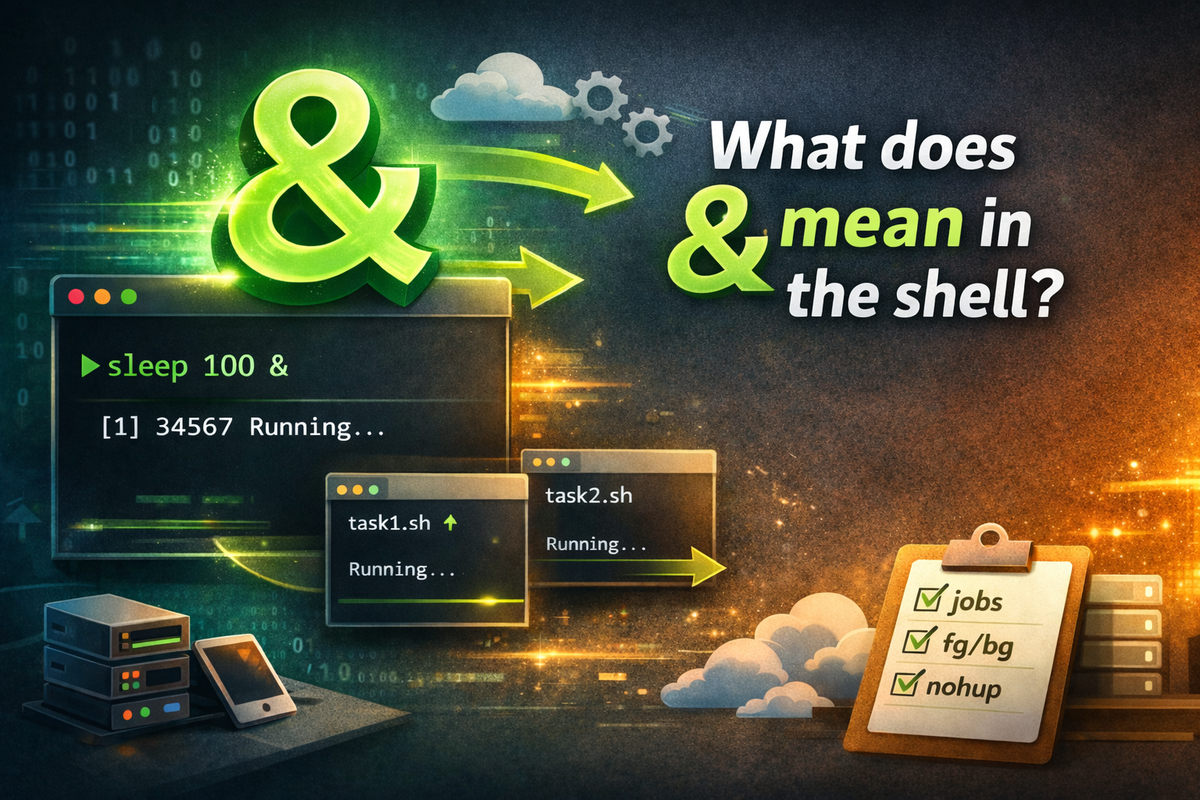
When working with a shell in Linux or Unix-like environments, you will often see examples where an & is placed at the end of a command. At first glance, it may seem like just “some symbol added at the end,” but in reality, it is a very important syntax for understanding the shell’s execution model and job control. To state the conclusion first, in the shell, & means to execute the command in the background rather than the foreground.
Normally, when you run a command in the terminal, the shell holds onto that task until it finishes. For example:
sleep 10
If you run this, the terminal waits for 10 seconds until the command completes. During this time, it is difficult for the user to immediately enter another command. This execution model is called foreground execution.
On the other hand, if you add & to the same command, the situation changes:
sleep 10 &
Now sleep runs in the background, and the shell immediately returns the prompt. This means the user can continue entering other commands without waiting for sleep to finish. This is the most basic meaning of &.
What actually happens when you use &
When the shell encounters command &, it executes the command asynchronously. In simple terms, it registers the command as a new job within the current shell session and immediately returns control to the user. This allows you to run long tasks while continuing to use the terminal.
For example:
sleep 100 &
You will usually see output similar to this:
[1] 12345
Here, [1] is the job number, and 12345 is the process ID (PID). The job number is used by the shell to manage jobs, while the PID is used by the operating system to identify the process. They may look similar, but they are not the same. The shell works with job numbers, while the OS manages processes using PIDs.
Why background execution is needed
The simplest reason is to continue using the terminal while running commands that take a long time. Tasks such as large file compression, copying files, running servers, analyzing logs, or executing tests can take seconds, minutes, or even longer. If these are always run in the foreground, the terminal becomes blocked.
For example, suppose you start a web server for testing:
python -m http.server 8000 &
The server runs in the background, and you can immediately use the same terminal to run commands like curl, ps, or jobs.
Another example is when a log analysis command takes a long time:
grep "ERROR" large.log > error.txt &
This command runs in the background and writes results to error.txt, allowing the user to perform other checks at the same time.
Difference between foreground and background
The core difference is whether the shell waits or not.
In foreground execution, the shell waits until the command finishes:
find / -name "*.log"
In background execution, the shell does not wait and immediately accepts new input:
find / -name "*.log" > logs.txt 2>/dev/null &
However, there is an important point to note. Running in the background does not mean the process moves to a completely separate world. It is still connected to the current shell session, and depending on how stdout/stderr are handled, it may still print output to the terminal. This is why, in practice, & is often used together with redirection.
Why output gets mixed
Background jobs still send their standard output (stdout) and standard error (stderr) to the current terminal by default. For example:
python app.py &
The logs from the background process may continue to appear in the terminal. This can mix with user input and make it difficult to read. To prevent this, output redirection is commonly used:
python app.py > app.log 2>&1 &
This command sends both stdout and stderr to app.log and runs the process in the background. This pattern is very common in real-world server execution.
If you want to discard output entirely, you can use:
python app.py > /dev/null 2>&1 &
In this case, nothing is printed to the screen.
Relationship with jobs, fg, and bg
Once you understand &, the next concept is job control commands. You can check background jobs managed by the current shell using:
jobs
The output might look like:
[1]+ Running sleep 100 &
To bring a job back to the foreground, use:
fg %1
Here, %1 refers to job number 1. Conversely, if a foreground process is paused with Ctrl+Z, you can send it back to the background using:
bg %1
In other words, & starts a job in the background from the beginning, while bg resumes a stopped job in the background.
& and && are completely different
A common confusion for beginners is between & and &&. They may look similar, but their meanings are completely different.
& is for background execution:
sleep 5 &
echo "next"
Here, sleep 5 runs in the background, and echo "next" executes immediately.
On the other hand, && runs the next command only if the previous one succeeds:
mkdir test && cd test
In this case, cd test runs only if mkdir test succeeds. So & is about job control, while && is about conditional execution. They should not be confused.
When & alone is not enough
Background execution is useful, but if you need the process to continue running even after closing the terminal, & alone may not be sufficient. In many cases, processes are affected by session termination. This is why long-running processes are often used with nohup:
nohup python app.py > app.log 2>&1 &
This pattern is very common for servers, batch jobs, and scripts. nohup helps the process survive terminal termination, while & runs it in the background. Their roles are different: & means “run in the background,” while nohup means “survive after the session ends.”
Common real-world examples
Running a simple backup script in the background:
tar -czf backup.tar.gz /home/user/data > backup.log 2>&1 &
Running a Java application:
java -jar app.jar > app.log 2>&1 &
Running a shell script:
./batch.sh > batch.log 2>&1 &
Running multiple jobs in parallel:
./job1.sh &
./job2.sh &
./job3.sh &
wait
Here, wait tells the shell to wait until all background jobs started by the current shell have finished. This is useful when running multiple tasks in parallel and synchronizing at the end.
Summary
In the shell, & is not just a simple symbol—it is a core syntax that allows commands to run in the background. Understanding this helps explain why some commands block the terminal while others return the prompt immediately.
It also connects naturally to topics like jobs, fg, bg, nohup, and redirection. In practice, & is used very frequently. However, if you only think of it as “something added at the end,” you will quickly reach limitations. You need to understand it as part of a larger system that includes background execution, output handling, session behavior, and job control.
Ultimately, & is a small symbol, but behind it lies the entire execution model of the shell.