
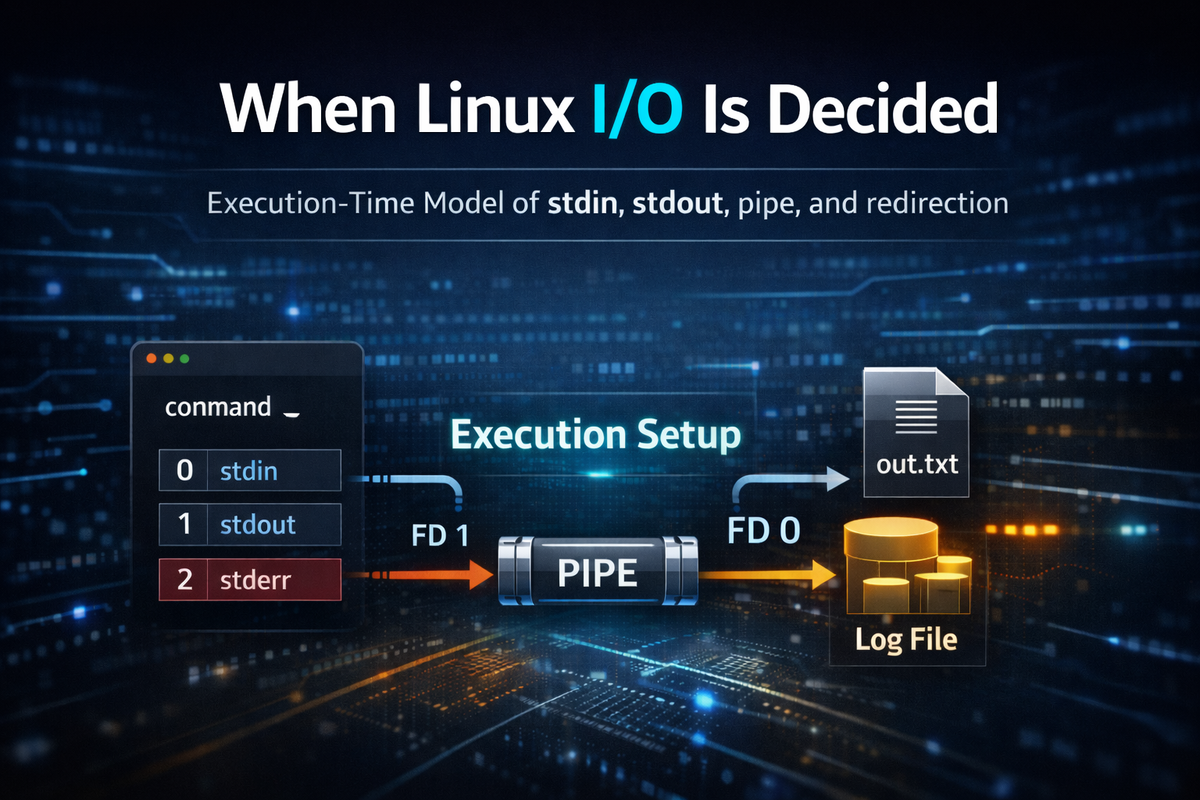
Why does the same command produce different results?
When executing commands in a terminal, many people assume that if the command itself is the same, the result should also be fundamentally the same. This assumption does not cause major issues for simple commands. However, it quickly breaks down once redirection and error output are involved. For example, command > out.txt 2>&1 and command 2>&1 > out.txt look very similar on the surface. Both appear to intend to send stdout and stderr to the same place. But in reality, the first command sends both normal output and error output to the file, while the second command may leave stderr in the terminal and only send stdout to the file. The important point here is that the difference in results is not caused by the arrangement of characters, but by the order in which the shell interprets and applies the statement.
If this difference is not verified directly, the explanation tends to remain abstract. You can observe the difference immediately with a simple test. Force stderr to occur by attempting to read a non-existent file, while also producing stdout at the same time.
echo "stdout"; cat not_exist_file
Run this command in the following two ways.
echo "stdout"; cat not_exist_file > out1.txt 2>&1
echo "stdout"; cat not_exist_file 2>&1 > out2.txt
In the first case, both normal output and error messages are written to out1.txt. In the second case, only normal output is written to out2.txt, and the error message remains printed in the terminal. This difference can be directly observed, and through the result, you can verify that “even statements that look the same in meaning are processed differently internally.” What matters here is not memorizing the result, but recognizing that there is an internal process that produces this result.
When encountering this difference for the first time, many explanations drift toward memorizing syntax. Some people tell you to memorize 2>&1. Others suggest using a certain order as a habit. However, this approach quickly reveals its limitations when conditions change slightly. The reason is that what is needed here is not memorization of patterns, but a structural understanding of what state changes occur just before execution. On the screen, all output simply looks like text. But inside the system, stdout and stderr are not the same from the beginning. And the shell reconnects these paths one by one before executing the command.
Therefore, even if commands look the same externally, the final result changes depending on which connections were established first internally. At this point, the question naturally shifts. It is no longer “which syntax should be used,” but “what does the shell change, and how, before execution?”
▶ To understand this concept more deeply: Understanding dup and dup2 — The Real Reason 2>&1 and Redirection Order Behave Differently
To move to the next step, this question must be clearly defined. Once you begin to look for the cause of result differences not in surface syntax but in the system’s preparation process, several assumptions that were previously taken for granted begin to emerge. In the next section, we need to start by identifying exactly what those incorrect assumptions are.
What we are assuming incorrectly
The most common misunderstanding when learning Linux I/O is the belief that stdout, stderr, and pipes exist as fixed channels from the beginning. When you type a command into the terminal, you see output. So stdout feels like it naturally goes to the terminal. When an error occurs, you see a message. So stderr is easily understood as just an additional output channel on the screen. When pipes and redirection are added, people tend to interpret them as “temporarily changing an existing path.” This interpretation is convenient at the beginner level. However, it is not accurate at the system level. More precisely, it is merely an explanation attached after observing the result.
This misunderstanding can be immediately broken by checking the actual state through /proc. To see what input/output targets the current shell process has, you can use the following command.
ls -l /proc/$$/fd
Here, $$ represents the PID of the current shell process. The output shows what fd 0, 1, and 2 are pointing to. In the default state, they all point to the terminal device. However, if you apply redirection and run the same command, the result changes.
bash -c 'ls -l /proc/$$/fd' > out.txt
In this case, fd 1 no longer points to the terminal but to a file. In other words, stdout is not “originally going to the terminal,” but was simply set that way in the default state. Using pipes changes the fd connections again in a similar manner.
The key takeaway from this experiment is simple. Output results are always a post-hoc phenomenon, and what truly matters is the file descriptor state a process has when it starts. stdout is not conceptually “the screen.” stderr is not “a separate screen for errors.” A pipe is not a pre-existing channel between programs. The shell reads the command and then, just before execution, determines one by one what each file descriptor will point to.
From this perspective, > is not a function that “sends text to a file.” It is an operation that changes the target of stdout to a file. Similarly, | is more accurately understood not as “output flowing into the next command,” but as reconnecting the stdout of the previous process and the stdin of the next process through a specific kernel object. Missing this point makes it impossible to predict new situations. On the other hand, once this assumption is discarded, command syntax begins to be read not as a description of results, but as an expression of state changes.
▶ To understand this concept more deeply: Complete Guide to Linux Shell Execution — How Programs Are Executed and Controlled
Now the frame of reference has changed. Instead of looking at output results, you must look at what state is created before execution. In the next step, we need to examine in more detail how this “pre-execution state” is actually constructed.
Nothing is connected before execution
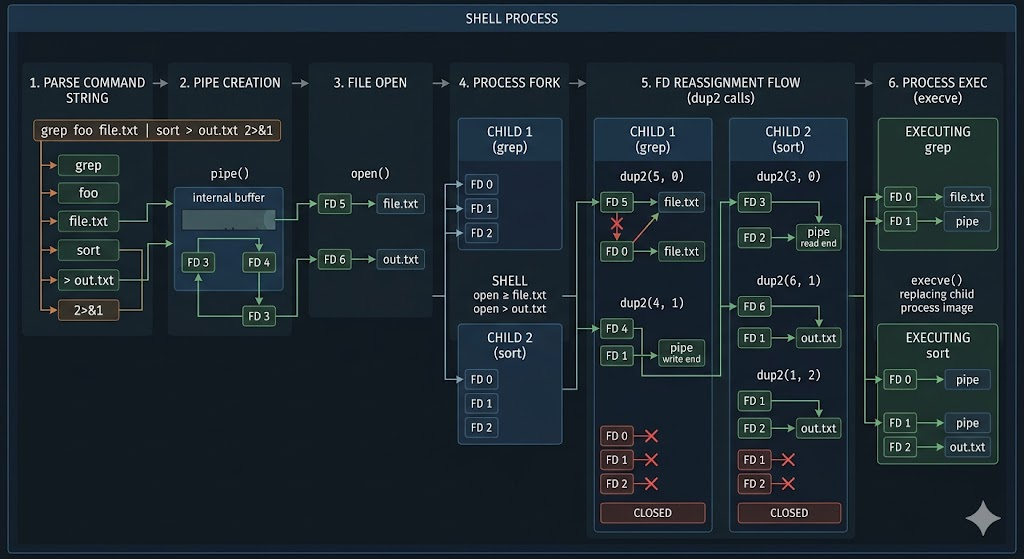
The statement “nothing is connected before execution” does not literally mean a completely empty state. More precisely, it means that the I/O connection structure that the user will ultimately observe has not yet been finalized. Consider entering a command like grep foo file.txt | sort > out.txt 2>&1. At this point, only a single string exists. However, for the program to actually run, several connection steps must occur beforehand. A pipe must be created. The stdin and stdout of each process must be connected to the ends of that pipe. The stdout of the final process must be redirected to a file. stderr may also be reassigned to reference the current target of stdout.
To observe this process directly, you can use strace. Running the following command allows you to see which system calls the shell uses internally.
strace -f -e trace=process,dup2,pipe,open bash -c 'grep foo file.txt | sort > out.txt 2>&1'
The output shows calls such as pipe, dup2, open, and execve in sequence. What can be confirmed here is straightforward. Files are opened, pipes are created, and file descriptor reassignment is performed before the program is executed. In other words, the single line of command you entered goes through multiple preparation steps internally before execution. This stage is exactly the “pre-execution state construction.”
This stage is important because the program itself is completely unaware of it. grep does not know whether it is placed before a pipe. sort does not know whether its output is redirected to a file. Programs simply read and write through fd 0, 1, and 2. What is connected behind those file descriptors must already be determined before execution. The shell first opens the necessary files, creates the required pipes, and applies the necessary fd reassignments. Only then does it execute the program.
Understanding this structure also explains why redirection and pipes naturally work together. They may appear as different features, but in reality, they are different ways of solving the same problem: “what should each file descriptor point to before execution?” File redirection makes a file descriptor point to a file. A pipe makes a file descriptor point to a pipe object. 2>&1 makes fd 2 reference the current target of fd 1.
At this level, I/O is no longer an abstract flow. It is a state model constructed just before execution. And the smallest unit that composes this model is the file descriptor. Therefore, in the next step, file descriptors must be understood not as simple numbers, but as references representing actual connection relationships.
A file descriptor is not a “value,” but a reference
From this point on, if you understand file descriptors as simple numbers, the explanation cannot progress any further. The numbers 0, 1, and 2 are convenient notation at the beginner level. However, to explain the structure at execution time, these numbers must be understood not as “labels of output types,” but as handles that indicate which I/O target a process is currently connected to. In reality, a file descriptor is an integer used by a process to identify open I/O objects such as files, terminals, and pipes, and stdin, stdout, and stderr are also represented as FD 0, 1, and 2 respectively. The important point is that the number itself does not contain any data. The number only expresses the fact that it is connected somewhere. Therefore, redirection is not a function that moves output strings elsewhere, but an operation that changes the target that the number points to.
This concept can be directly verified through /proc. To see what the file descriptors of the current process are pointing to, run the following command.
ls -l /proc/$$/fd
Here, fd 1 points to the terminal by default. Now, if you check the same thing after changing stdout to a file, the difference becomes apparent.
bash -c 'ls -l /proc/$$/fd' > out.txt
In this case, fd 1 no longer points to the terminal but to the file out.txt. The output did not “move” to the file; rather, the program was executed in a state where fd 1 was already set to point to the file. This distinction is critical. Because from this point on, all redirection behavior is explained not as “data movement,” but as reference reassignment.
At this point, it is especially important to recognize that explaining 2>&1 as “sending stderr to stdout” misses the core. A more accurate explanation is not that stderr changes into the value of stdout, but that stderr is reassigned to reference the same target that stdout is currently pointing to. To verify this distinction, run the following experiment.
bash -c 'ls -l /proc/$$/fd' 2>&1
In this case, fd 2 ends up pointing to the same target as fd 1. In the /proc output, you can confirm that both FDs point to the same inode. This result shows that stderr does not “follow” stdout dynamically, but instead acquires a fixed reference to the stdout target at a specific point in time.
If you do not distinguish between “value copying” and “reference sharing,” you can never explain ordering issues. This is also why dup and dup2 are important. These system calls do not copy file contents; they rearrange file descriptors so that one descriptor points to the same I/O target as another. The program still writes to FD 1 as before. What has changed is the reference structure created outside the program, specifically by the shell just before execution.
▶ To understand this concept more deeply: Linux File Descriptors (fd), dup, and dup2 — The Real Structure Connecting Execution and Redirection
Now there is one clear frame of reference. A file descriptor is not a value, but a reference. Therefore, in the next step, what matters more than “what was connected” is when that connection was established.
A single order changes all results
If you have properly understood redirection in the Linux shell, you can now move to the most commonly confusing point. Why do command > file 2>&1 and command 2>&1 > file produce different results? Many explanations stop at “the first command is correct” or “just memorize this order.” But this is not a matter of syntax preference. The shell does not interpret redirection all at once. After parsing the command, just before execution, the shell applies file descriptor reconfiguration sequentially. Therefore, which target is changed first determines the meaning of subsequent operations.
This difference can be directly observed. Run the following test.
bash -c 'echo stdout; echo stderr >&2' > out1.txt 2>&1
bash -c 'echo stdout; echo stderr >&2' 2>&1 > out2.txt
In the first case, both stdout and stderr are written to out1.txt. In the second case, only stdout is written to out2.txt, while stderr is printed to the terminal. This result is directly observable and demonstrates that this is not a matter of memorized rules, but an actual behavioral difference.
Now this result must be interpreted structurally. In the first command, > out1.txt is applied first, so stdout is set to point to the file. Then 2>&1 is applied, causing stderr to reference the current stdout target, which is the file. In contrast, in the second command, 2>&1 is applied first. At that moment, stdout still points to the terminal. Therefore, stderr also points to the terminal. After that, > out2.txt is applied, changing only stdout to the file while stderr remains pointing to the original target.
This structure can also be verified with strace.
strace -e dup2 bash -c 'echo test > out.txt 2>&1'
The output shows the order of dup2 calls. It records sequentially which FD is changed to which target. From this log, you can confirm that redirection is not declarative but procedural in its application.
Ultimately, redirection syntax is not decorative text; it is a syntax through which the shell redraws the I/O wiring sequentially. Once this is understood, the result is no longer accidental. If you know what stdout points to at a given moment, you can determine the meaning of the subsequent 2>&1.
▶ To understand this concept more deeply: Understanding dup and dup2 — The Real Reason 2>&1 and Redirection Order Behave Differently
At this point, redirection begins to look completely different. In the next step, the same principle must be applied to pipes. Pipes, too, are not results, but connection structures created before execution.
A pipe is not a flow, but a connection operation
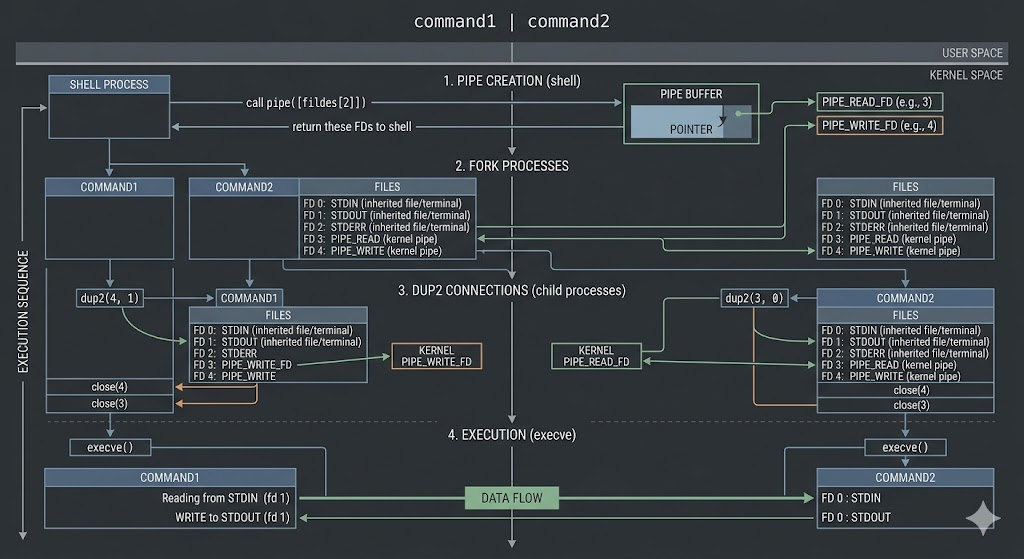
Now pipes must be reconsidered. Many explanations summarize | as “passing the output of the previous command to the next command.” This explanation is not wrong at the usage level. However, it is insufficient to explain the execution-time structure. To understand pipes, they must be viewed not as data flow, but as an operation in which the shell connects the file descriptors of two processes to a specific kernel object.
This structure can be directly observed through strace. Run the following command.
strace -f -e pipe,dup2,execve bash -c 'echo test | cat'
The output first shows a pipe() call. Then two processes are created, and in each process, dup2 calls connect fd 1 and fd 0 to the two ends of the pipe. Finally, execve is called to execute the actual program. From this sequence, it becomes clear that the pipe is not created during execution, but is fully prepared before execution begins.
To verify this state more directly, you can use /proc. After running a process that uses a pipe, if you check the file descriptors of that process, you can see that certain FDs are displayed in the form pipe:[inode].
ls -l /proc/<pid>/fd
Here, you can confirm that stdout or stdin points not to a file, but to a pipe object. In other words, a pipe is not an abstract flow, but a real object managed by the kernel, and file descriptors reference that object.
Once this perspective is established, it becomes clear that redirection and pipes exist at the same conceptual level. File redirection connects stdout to a file. 2>&1 connects stderr to the current target of stdout. A pipe connects the stdout of one process to the stdin of another process via the two ends of a pipe object. They appear as different features, but in reality, they are different answers to the same question: “What do fd 0, 1, and 2 point to when this process starts?”
▶ To understand this concept more deeply: What Is a Pipe (|)? A Clear Guide to the Linux Pipe Concept
At this stage, I/O no longer appears as a flow. It is a connection structure constructed before execution. In the next step, it becomes necessary to clearly define what the stdout, stderr, and pipe results we actually observe represent—that is, why I/O must be understood not as structure, but as a product of execution timing.
What we see as I/O is only the result
If you examine file descriptors, redirection order, and pipe connections together, a single common conclusion emerges. The output that users see in the terminal is not the essence of I/O. It is merely the result of the connection structure that was constructed just before execution being exposed externally. If this distinction is not clearly understood, people will continue to build concepts based on observed phenomena. If something appears on the screen, they assume it is stdout. If it is written to a file, they assume redirection occurred. If the next command reads it, they assume a pipe was connected. These explanations may be sufficient to describe results. However, concepts built on results collapse immediately when encountering new situations. They fail to explain why the same command produces entirely different outputs in different execution environments.
This difference becomes much clearer when directly compared. If you run the following commands, the same program appears to behave in completely different ways.
python3 -c 'import sys; print("out"); print("err", file=sys.stderr)'
python3 -c 'import sys; print("out"); print("err", file=sys.stderr)' > out.txt
python3 -c 'import sys; print("out"); print("err", file=sys.stderr)' 2> err.txt
python3 -c 'import sys; print("out"); print("err", file=sys.stderr)' | cat
In the first case, both stdout and stderr appear in the terminal. In the second case, only stdout is saved to a file while stderr remains in the terminal. In the third case, only stderr is redirected to a file while stdout remains in the terminal. In the fourth case, stdout is passed through a pipe to cat, while stderr still remains in the terminal. The critical point here is that the program code has not changed at all. The only thing that changed is the fd connection state prepared by the shell just before execution. This experiment breaks the assumption that “visible output is an inherent property of the program.” The destination of output is not a direct property of the program’s internal logic, but a result determined by how the execution environment was prepared.
More importantly, from the program’s perspective, the screen, file, and pipe are not direct concepts at all. The program simply reads from fd 0 and writes to fd 1 or fd 2. What the user calls “output appearing on the screen” is simply the result of fd 1 pointing to the terminal at that moment. What the user calls “saved to a file” is simply the result of fd 1 having been changed to point to a file beforehand. What the user calls “passing to the next command” is simply the result of fd 1 and another process’s fd 0 being connected to the two ends of a pipe object. From this perspective, I/O is not a completed behavior inside the program. It is one aspect of the execution environment jointly constructed by the shell, kernel, and process.
Once this perspective is accepted, the user can now infer the structure by looking at the output result. It becomes possible to determine why a message went into a file, why it remained on the screen, or why it did not pass to the next pipeline stage, based solely on the result. Once this capability is developed, the next question naturally shifts to practice. In real scripts and operational environments, the issue becomes how this structure should be handled based on clear criteria.
▶ To understand this concept more deeply: Understanding Linux I/O and Streams — stdin, stdout, pipes, and redirection explained
In practice, “how to execute” matters more than “where to output”
The most common mistake when handling I/O in practice is composing commands based only on output results. If you want to store logs in a file, you append > logfile. If you also want to store errors, you add 2>&1. If you want to run quietly, you send output to /dev/null. This approach appears sufficient on the surface. However, as conditions become more complex—such as in operational scripts, batch jobs, or CI environments—this result-driven composition becomes unstable. Some outputs are written to files, while others remain in the terminal. Some commands pass through pipes, while certain errors are not visible to subsequent stages. The root cause of this problem is not insufficient memorization of command syntax. The core issue is the lack of awareness of what fd state a process inherits before execution.
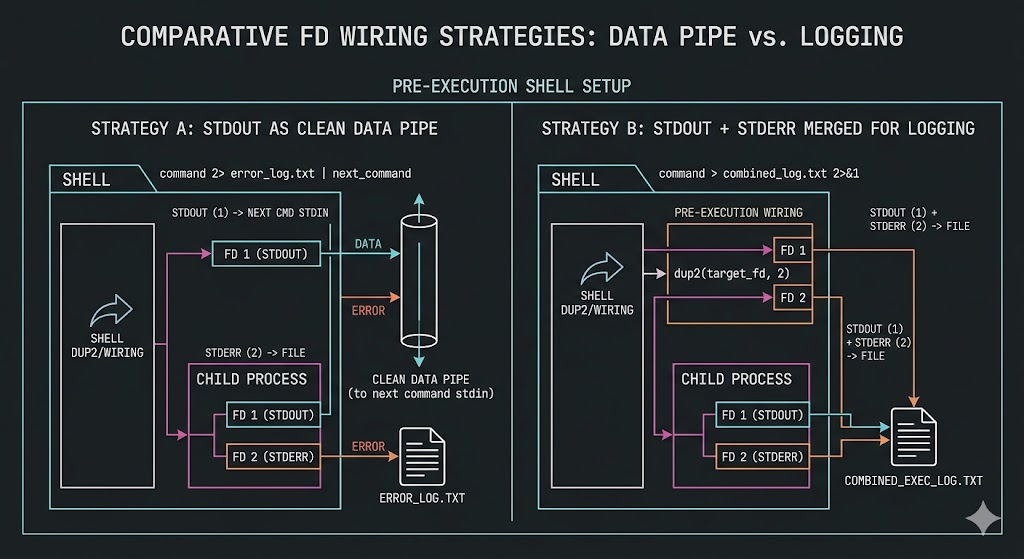
This difference becomes immediately apparent when downstream processing is involved. For example, when stdout is used as input to the next command, stdout must be preserved as a data channel. If stderr is mixed into it, downstream commands may break. The following simple example demonstrates this difference clearly.
python3 -c 'import sys; print("123"); print("err", file=sys.stderr)' | grep 123
In this command, grep receives only stdout, so it correctly processes only 123. However, if stderr is merged as follows, the downstream input changes.
python3 -c 'import sys; print("123"); print("err", file=sys.stderr)' 2>&1 | grep 123
Here, grep receives stderr along with stdout as input. In this example, it may not seem like a major issue. However, in tasks where the format of stdout matters—such as JSON output, CSV output, or numerical aggregation—this mixing immediately becomes a source of failure. In other words, stdout is not just “visible output,” but sometimes a data channel consumed by the next stage. In such cases, separating stderr is not a matter of preference but a structural requirement.
Conversely, there are situations where you want to preserve the entire execution log in batch processing. In such cases, storing stdout and stderr together may be more useful for analysis. For example, if you need to reconstruct context around a failure point, a unified stdout/stderr log is more appropriate. Therefore, practical decision-making does not end with a general rule of “merge or not.” You must first determine whether stdout is a message for humans, data for another process, or a simple log. Then decide whether stderr is an independent error channel or should be preserved together with execution context. If you attach 2>&1 habitually without making this decision, it may be convenient in some cases but will immediately break the structure in others.
To manage this reliably, you must define the role of each FD before execution. Determine whether stdout is a data channel, an execution log, or a simple user message. Determine whether stderr is an independent failure channel or a supplementary log to be included in the overall execution context. Only after that should you choose redirection syntax. If you reverse this order, the syntax may be correct, but the structure will be unstable. Ultimately, what is required in practice is not the ability to combine commands, but the ability to design execution state.
▶ To understand this concept more deeply: Linux Log Redirection Strategy — When to Combine and When to Separate stdout and stderr
At this point, what remains is to organize practical intuition into a single model. In the next section, a minimal set of questions must be clearly established so that the behavior of any new command can be predicted.
What matters now is not syntax, but a predictable model
The reason this discussion has taken a long path is simple. What is required to actually handle Linux I/O is not memorization of command fragments, but a model that allows you to visualize the state just before execution. Regardless of the command, the questions to ask are always the same. What does fd 0 point to? What does fd 1 point to? What does fd 2 point to? And in what order were these connections established? If you can answer these four questions, there is no need to memorize every pattern. Even if 2>&1 looks unfamiliar, knowing that stderr references the current target of stdout allows you to compute the result. Even if pipes span multiple stages, tracing where each process’s stdin and stdout are connected allows you to explain the behavior. Whether redirection points to a file, device, /dev/null, or pipe, the principle does not change. Only the target of the connection changes.
To verify that this model is actually valid, the best approach is to look at a new command and predict its behavior before running it. For example, consider the following command.
grep foo input.txt 2> err.log | sort > out.txt
If you try to memorize this in functional terms, it may be confusing. But through the model, the interpretation is clear. The stdin of the first process grep comes from the default input or file argument. Its stdout is connected to the write end of a pipe. Its stderr is connected to the file err.log. The stdin of the second process sort is connected to the read end of the pipe. Its stdout is connected to the file out.txt. From this interpretation, you can predict that errors from grep will not be passed to sort, and that sort will receive only the normal stdout of grep as input. This prediction must match the execution result. That is, this model is not just a conceptual explanation—it is a practical computation tool.
At this level, syntax is no longer something to memorize, but a notation for state changes. > is notation for changing the stdout target. 2> is notation for changing the stderr target. 2>&1 is notation for making stderr reference the current target of stdout. | is notation for connecting the stdout of one process and the stdin of another process to the two ends of a pipe object. At this point, users no longer become confused by results. Instead, they begin by asking, “what FD wiring did the shell construct before executing this command?” The moment this question appears, it means I/O is no longer being read as isolated command syntax, but as system behavior.
The strength of this model lies in its generality. Even when encountering other topics such as stdout/stderr separation strategies, advanced redirection, job control, or background execution, the same questions can be applied. Ultimately, understanding Linux I/O is not about memorizing > or |. It is about being able to predict the input/output state constructed just before execution. And from that point on, syntax is no longer a set of disconnected rules, but a form of expression built on a single consistent state model.
▶ To understand this concept more deeply: Complete Guide to Linux Shell Execution — How Programs Are Executed and Controlled